Google Analytics is the enterprise-class web analytics solution that gives you rich insights into your website traffic and marketing effectiveness. Powerful, flexible and easy-to-use features now let you see and analyze your traffic data in an entirely new way. With Google Analytics, you're more prepared to write better-targeted ads, strengthen your marketing initiatives and create higher converting websites. But how to use Google Analytics? You have blogs or websites or forums. But you don’t know the ways to use Google Analytics for all these blogs, websites or forums. Don’t worry. The detail step by step procedure for adding Google Analytics will be found in this page and you just follow the steps to do all.
-

Go to Google Analytics by typing the address
http://www.google.com/analytics/ to your browser address bar. Remember, you must need a Google account to use Google Analytics for your blog or site or forums. So, if you don’t have any Google account, you must have to create a Google account firstly. When the Google Analytics page opens, click on
Sign Up Now option to create a Google Analytic account through your Google / Gmail account.
-

When you have done the above step, you will find a sign in prompt to log in to your Google account. Put your email address and password to the
Email and
Password field and click on
Sign In button.
-
After step 2, Google Analytics offer you Sign Up for Google Analytics option. Just click on
Sign Up button to Sign up Google Analytics. Remember, you must have to click on
Sign Up button to sign up to Google Analytics. Otherwise, you cant sign up to Google Analytics.

-
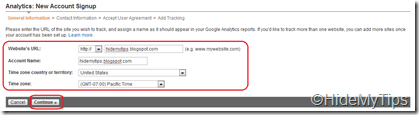
Now, the Getting Started page will be appeared. Here, you will find some text field which you need to give information. Just fill the following information to the respective fields and click on Continue button.
-
In this step, you have to enter your Last Name, First Name and Country or territory. Now, click on Continue button.
-

Google Analytics now displays all the terms and conditions of Google Analytics. Just read all the terms and conditions of Google Analytics and click on the check box
Yes, I agree to the above terms and conditions and click on
Create New Account button to create a new account of Google Analytics.
-
After the above steps, you find the Google Analytics tracking code. You just need to copy the tracking code, then paste it onto every page you want to track immediately before the closing </head> tag. The tracking codes like the followings [In the field 'UA-1234567-1' will be your own tracking code for Google Analytics]:
<script type="text/javascript">

  var _gaq = _gaq || [];
  _gaq.push(['_setAccount', 'UA-1234567-1']);
  _gaq.push(['_trackPageview']);

  (function() {
    var ga = document.createElement('script'); ga.type = 'text/javascript'; ga.async = true;
    ga.src = ('https:' == document.location.protocol ? 'https://ssl' : 'http://www') + '.google-analytics.com/ga.js';
    var s = document.getElementsByTagName('script')[0]; s.parentNode.insertBefore(ga, s);
  })();

</script>
At last, click on the Finish button to complete the Google Analytics for your webpage, blog or forums.

Access to your blog by visiting the address
www.blogger.com or
www.blogspot.com and select the blog which you want to add the Google Analytics tracking code. After choosing the blog, click on
Design option of the desired blog which you like to add the analytics code of Google Analytics.
You will redirected to the page of
Page Element page. You will find the link
Add a Gadget and just click on that. After clicking on that option, a new window will be popped up and you have to choose the Gadget
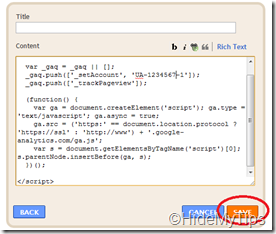
HTML/JavaScript from the gadget pane option. Now, just paste the tracking code in the
Content text box and click on
SAVE button to save all the code to your blog template.
And that’s all. By following the above steps, you can easily add Google Analytics to your blog. Hope, you are able to add tracking code of Google Analytics to your blog. If you face any difficulties then please tell me in the comment section, I will try to solve your problem.
Note:
 Google Analytics is totally free and anyone can use it for their website, blog or forums.
Implementing Google Analytics to your blog is very easy. You just need to copy the tracking code and then paste it to a gadget to your blogger template.


